

What is the Notifications Hub?
The Notifications Hub is a centralized preferences screen where you configure how you receive governance notifications. Instead of relying on a single channel or missing important updates entirely, you can connect multiple channels and fine-tune exactly which events trigger notifications. Key benefits:- Multi-channel delivery: Receive notifications via email, Discord, Slack, Telegram, and/ or browser push
- Per-event control: Enable or disable notifications for specific events across each channel
- Wallet-linked preferences: Your settings are tied to your connected wallet
- Instant setup: Connect a channel and start receiving notifications immediately.
Setting Up Notifications
Getting started takes just a few steps. Once configured, your preferences persist across sessions - update them anytime from the Notifications Hub.Step 1: Sign to Manage Notifications
To access the Notifications Hub, you must first link your wallet to your notification preferences.- Connect your wallet to the governance site
- Open the wallet dropdown menu
- Select “Sign to manage notifications”
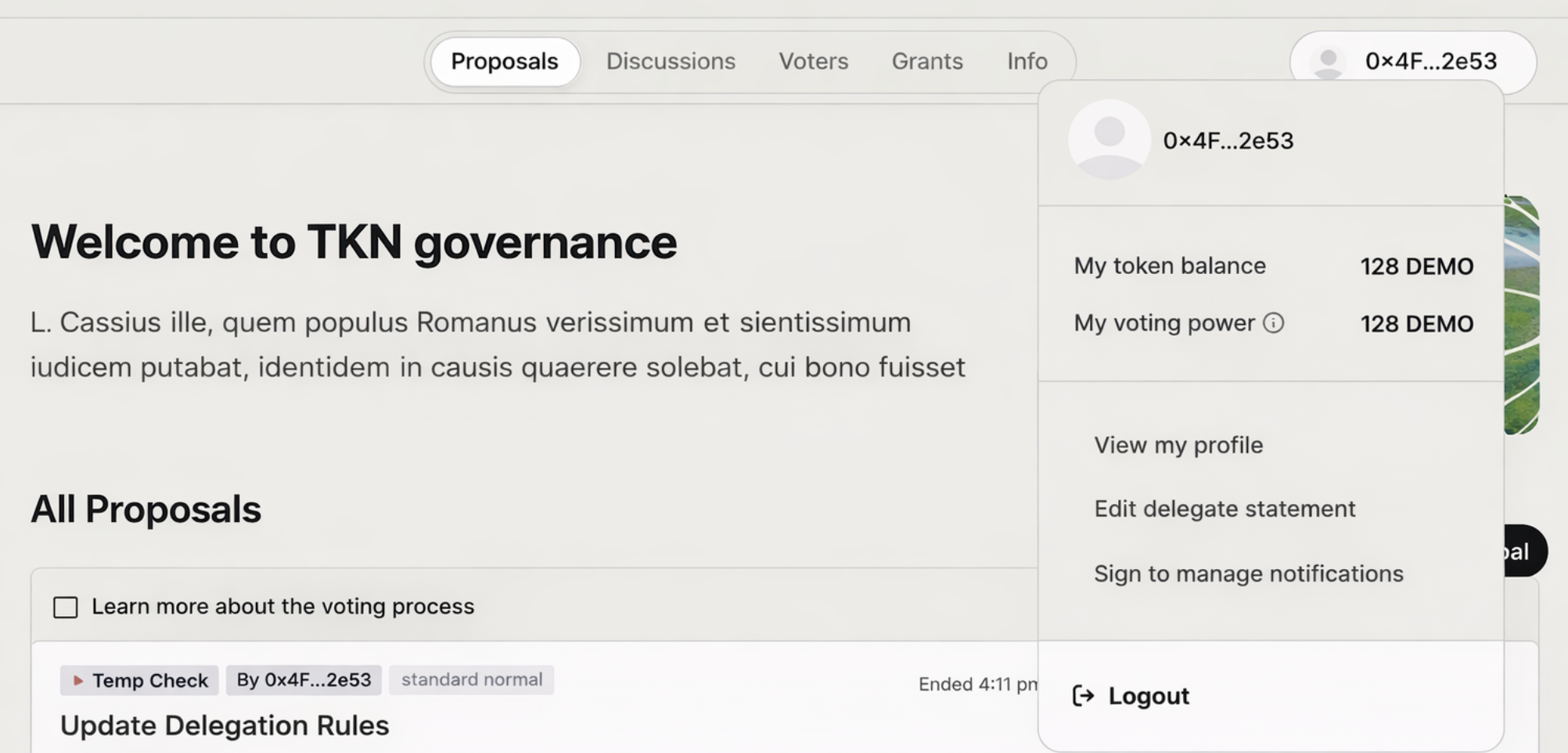
The signature does not grant any permissions or authorize transactions. It simply verifies wallet ownership so your preferences can be securely associated with your address.
Step 2: Connect Your Channels
The Notifications Hub supports five notification channels. Connect as many as you like - each channel operates independently, giving you maximum flexibility.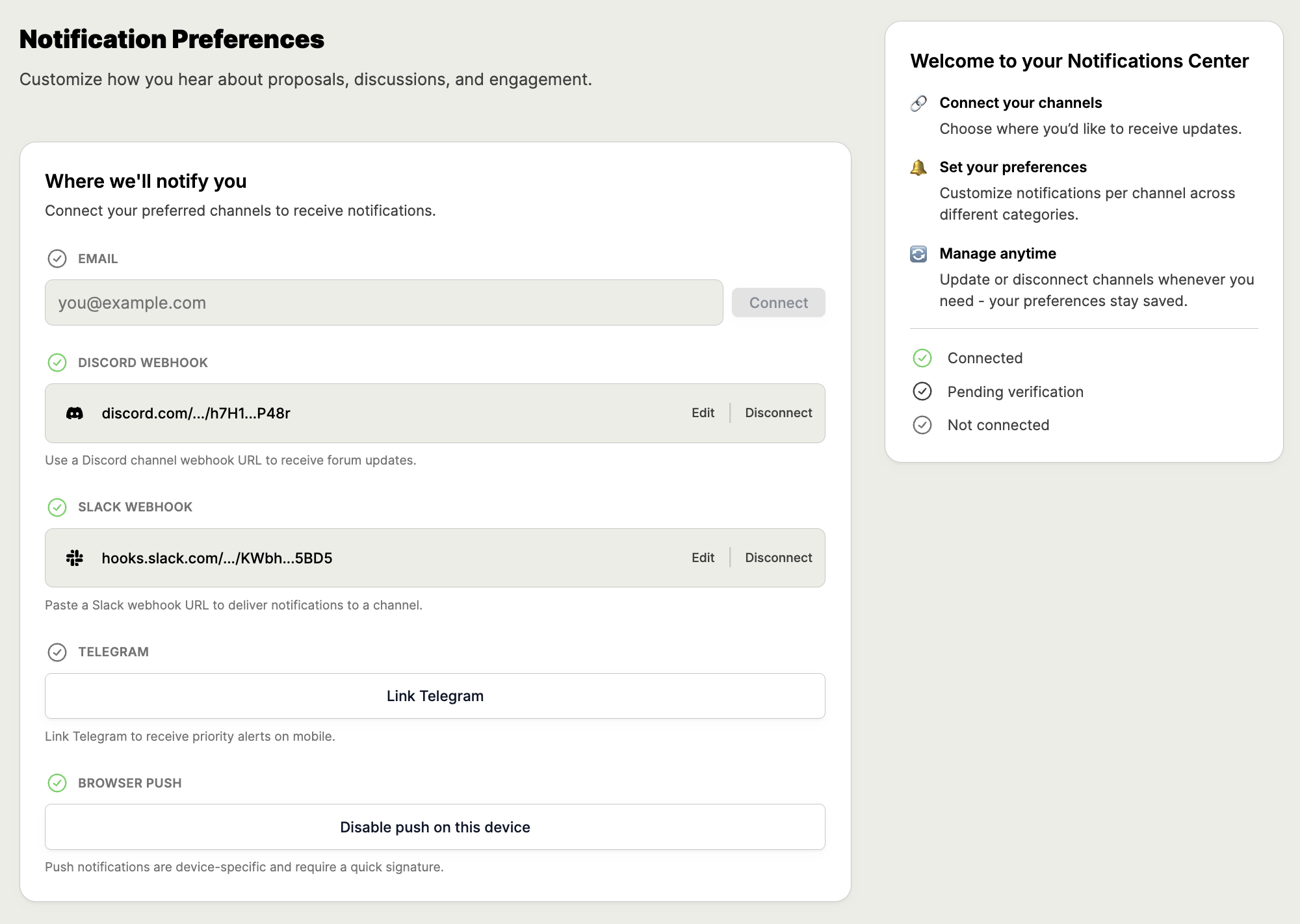
Step 3: Choose What You Want to Be Notified About
Once your channels are connected, use the notification events table to customize your preferences. Each row represents a specific event type, and each column represents a connected channel.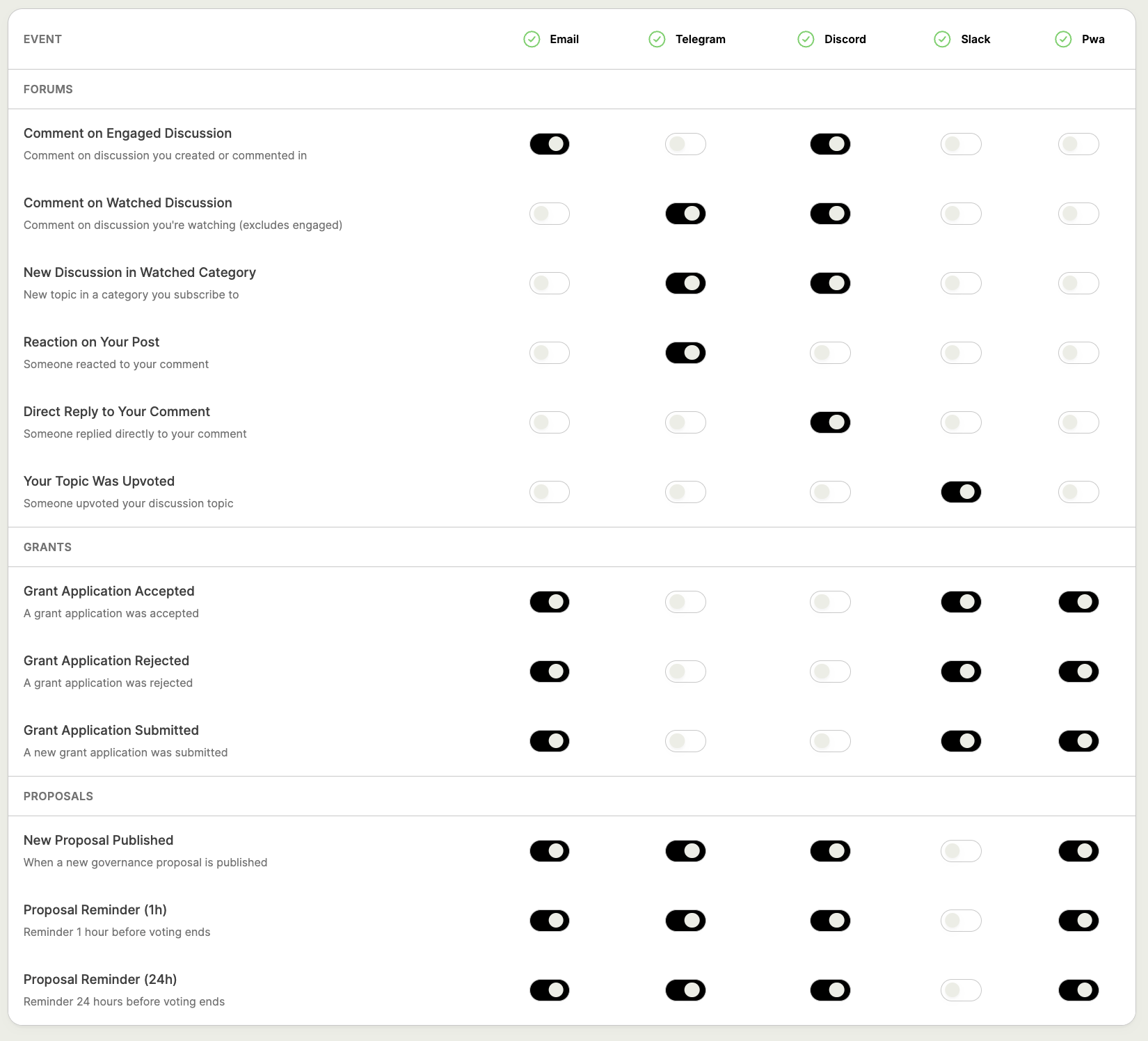
Notification Channels Explained
- Enter your email address in the Email field
- Click Connect
- Check your inbox for a verification email
- Click the verification link to activate
Discord Webhook
Discord webhook notifications send messages directly to a Discord channel of your choice. This is ideal for teams or communities that coordinate through Discord. Setup:- In Discord, open your server’s Server Settings
- Navigate to Integrations → Webhooks
- Click New Webhook and configure the target channel
- Copy the webhook URL
- Paste the URL into the Discord Webhook field in the Notifications Hub
- Click Connect
Slack Webhook
Slack notifications use incoming webhooks to deliver messages to a Slack channel. Perfect for organizations that use Slack for internal communications. Setup:- Go to your Slack workspace’s App Directory
- Search for and add Incoming Webhooks
- Select the channel where you want notifications to appear
- Copy the generated webhook URL
- Paste the URL into the Slack Webhook field in the Notifications Hub
- Click Connect
Telegram
Telegram notifications provide real-time mobile updates through the Agora Telegram bot. This channel is particularly useful for receiving priority updates on the go. Setup:- Click Link Telegram in the Notifications Hub
- Click Open Telegram when the linking prompt appears
- Complete the linking process in the Telegram app by interacting with the Agora bot
The linking URL expires after a few minutes. If it expires before you complete the process, simply request a new link.
Browser Push / PWA
Browser push notifications deliver native notifications directly to your device through your browser. Unlike other channels, push notifications are device-specific - you’ll need to enable them on each device where you want to receive notifications. Setup:- Click Enable browser notifications on this device
- Approve the browser permission prompt when it appears
- Complete a quick signature to link this device
Notification Categories
Notifications are organized into categories based on governance activity. Each category contains specific event types that you can enable or disable independently.Forums
Stay engaged with community discussions. Forum notifications include:- Comment on Engaged Discussion - Comment on discussion you created or commented in
- Comment on Watched Discussion - Comment on discussion you’re watching
- New Discussion in Watched Category - New topic in a category you subscribe to
- Reaction on Your Post - Someone reacted to your comment
- Direct Reply to Your Comment - Someone replied directly to your comment
- Your Topic Was Upvoted - Someone upvoted your discussion topic
Proposals
Never miss a vote. Proposal notifications include:- New Proposal Published - When a new governance proposal is published
- Proposal Reminder (24h) - Reminder 24 hours before voting ends
- Proposal Reminder (1h) - Reminder 1 hour before voting ends
Grants
Track grant program activity. Grants notifications include:- Grant Application Submitted - A new grant application was submitted
- Grant Application Accepted - A grant application was accepted
- Grant Application Rejected - A grant application was rejected